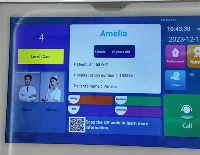
Hey there! As a supplier of School Digital Bulletin Boards, I often get asked about the software update procedures. It's a crucial topic, especially in an educational setting where these bulletin boards play a significant role in communication and information dissemination. So, let's dive right in and explore how we go about updating the software for these boards.
Why Software Updates Matter
First off, why do we even need software updates for school digital bulletin boards? Well, just like any other software, the software on these boards needs to be updated to ensure optimal performance. Updates can fix bugs that might cause glitches in the display or prevent the board from functioning properly. They also bring in new features that can enhance the user experience. For example, an update might introduce a new way to schedule content, making it easier for school administrators to manage what's shown on the board.
Moreover, security is a major concern. With the increasing number of cyber threats, software updates often include security patches that protect the board from potential attacks. This is especially important in a school environment where sensitive information might be displayed.


Pre - Update Checks
Before we start the actual update process, there are a few checks we need to do. First, we need to make sure that the School Digital Bulletin Board is connected to a stable power source. An unexpected power outage during the update can cause serious problems, such as corrupting the software and rendering the board inoperable.
Next, we check the network connection. A reliable internet connection is essential for downloading the software updates. If the connection is weak or unstable, the download might fail, or the update might not install correctly. We usually recommend using a wired connection for better stability, but a strong Wi - Fi connection can also work.
We also take a look at the available storage space on the board. Software updates can take up a certain amount of space, so we need to ensure that there's enough room for the new files. If the storage is running low, we might need to delete some unnecessary files or content before proceeding with the update.
The Update Process
Once all the pre - update checks are done, we're ready to start the update. There are generally two ways to update the software on a School Digital Bulletin Board: over - the - air (OTA) updates and manual updates.
Over - the - Air (OTA) Updates
OTA updates are the most convenient way to update the software. With OTA, the board automatically checks for updates when it's connected to the internet. If an update is available, it will prompt the user to install it. All the user needs to do is follow the on - screen instructions.
The board will first download the update files. This can take some time, depending on the size of the update and the speed of the internet connection. Once the download is complete, the board will verify the integrity of the files to make sure they weren't corrupted during the download. After verification, the board will install the update. This process might take a few minutes, and the board will usually restart once the installation is finished.
Manual Updates
In some cases, OTA updates might not work, or the user might prefer to do a manual update. For manual updates, we need to download the update files from our official website. You can find more information about our School Digital Display and related software on our site.
Once the files are downloaded, we transfer them to a USB drive. Then, we insert the USB drive into the School Digital Bulletin Board. The board will detect the update files on the USB drive and prompt the user to start the installation. Just like with OTA updates, the board will verify the files and then install the update. After installation, the board will restart.
Post - Update Checks
After the update is installed, we need to do some post - update checks to make sure everything is working properly. We check the display to see if there are any visual glitches or errors. We also test the functionality of the board, such as the ability to play videos, display images, and schedule content.
If there are any issues, we have a support team that can help troubleshoot. They can remotely access the board in some cases or provide step - by - step instructions on how to fix the problem.
Hardware Compatibility
It's important to note that software updates need to be compatible with the hardware of the School Digital Bulletin Board. Our Electronic Signage Hardware is designed to work seamlessly with the software. However, in some rare cases, an update might cause compatibility issues.
If you encounter any hardware - related problems after an update, don't worry. Our team can assess the situation and determine if a hardware upgrade is necessary or if there's a workaround to make the software and hardware work together again.
Training and Support
We understand that not everyone is tech - savvy, so we offer training and support to our customers. We can provide online tutorials on how to perform software updates, and our support team is available to answer any questions you might have. Whether it's a simple question about the update process or a more complex issue with the board, we're here to help.
Conclusion
Software updates for School Digital Bulletin Boards are essential for maintaining performance, security, and functionality. By following the pre - update checks, choosing the right update method (OTA or manual), and doing post - update checks, you can ensure a smooth update process.
If you're interested in our School Digital Bulletin Boards or have any questions about the software update procedures, don't hesitate to reach out. We're always happy to have a chat and discuss how our Digital Classroom Displays can meet your school's needs. Let's work together to make your school's communication more efficient and engaging!
References
- General knowledge on digital signage software updates
- Internal documentation on School Digital Bulletin Board software and hardware