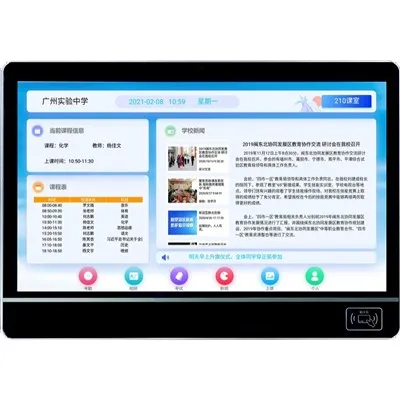
In the modern educational landscape, the integration of advanced technology has become a game - changer. One such technological marvel is the video phone class board, which offers a plethora of features to enhance the learning experience. Among these features, the split - screen function stands out as a powerful tool for educators and students alike. As a supplier of video phone class boards, I am excited to share with you how to effectively use the split - screen function on a class board.


Understanding the Split - Screen Function
The split - screen function on a video phone class board allows you to divide the display into multiple sections, each showing different content simultaneously. This can be incredibly useful in a classroom setting, as it enables teachers to present multiple sources of information side by side, facilitating better comparison and analysis.
For example, a teacher can display a lecture video on one side of the screen while showing related notes or diagrams on the other side. This not only saves time but also helps students to connect different pieces of information more easily. Additionally, the split - screen function can be used for group discussions, where each group's presentation or discussion can be shown on a separate section of the screen.
Step - by - Step Guide to Using the Split - Screen Function
Step 1: Access the Split - Screen Option
The first step is to access the split - screen option on your video phone class board. This is usually done through the control menu on the board. Depending on the model of your class board, the location of the split - screen option may vary. Some boards have a dedicated button for split - screen, while others require you to navigate through the menu to find it.
Once you have located the split - screen option, select it to activate the function. You will then see the screen divided into the default number of sections, which is typically two or four.
Step 2: Select the Content for Each Section
After activating the split - screen function, you need to select the content that you want to display in each section. This can be done in several ways.
If you are using a connected device, such as a laptop or a tablet, you can use the screen mirroring or casting feature to send the content from your device to the class board. For example, if you want to display a PowerPoint presentation on one section of the screen, you can connect your laptop to the class board and mirror the laptop screen onto the desired section.
Alternatively, you can use the built - in media player on the class board to play videos, images, or documents directly from the board's storage or a connected USB drive. Simply select the media file and choose the section of the screen where you want to display it.
Step 3: Adjust the Layout and Size of the Sections
Most video phone class boards allow you to adjust the layout and size of the split - screen sections. You can change the number of sections, resize each section, and even change the orientation of the sections.
To adjust the layout, look for the layout options in the split - screen menu. You can choose from different pre - defined layouts, such as two - column, three - column, or a custom layout. To resize a section, simply drag the border between the sections to increase or decrease its size.
Step 4: Interact with the Content
Once you have set up the split - screen display, you can interact with the content in each section. You can use the touch screen on the class board to navigate through presentations, zoom in on images, or play and pause videos.
Some class boards also support multi - touch gestures, which allow you to perform more advanced interactions, such as rotating images or pinching to zoom. This makes it easier for teachers and students to engage with the content and explore different aspects of the information being presented.
Benefits of Using the Split - Screen Function in the Classroom
Enhanced Learning Experience
The split - screen function provides a more engaging and interactive learning experience for students. By displaying multiple sources of information simultaneously, students can make connections between different concepts more easily. For example, they can compare historical events by looking at primary sources and secondary analyses side by side.
Time - Saving
Using the split - screen function can save a significant amount of time in the classroom. Teachers no longer need to switch between different applications or sources of information, as they can have everything they need displayed on the screen at once. This allows for a more seamless flow of instruction and keeps students focused on the lesson.
Improved Collaboration
In group work settings, the split - screen function can facilitate better collaboration. Each group can present their work on a separate section of the screen, allowing for easy comparison and discussion. Teachers can also use the split - screen to monitor the progress of different groups simultaneously.
Related Products and Solutions
As a video phone class board supplier, we offer a range of related products and solutions to enhance the educational experience. Our Classroom Digital Signage System provides a comprehensive solution for displaying important announcements, schedules, and educational content in the classroom. The LED Classroom Display offers high - quality visuals and is suitable for a variety of teaching scenarios. Additionally, our Digital Signage for Education solution is designed to meet the specific needs of educational institutions, providing customizable content management and distribution.
Contact Us for Procurement
If you are interested in learning more about our video phone class boards and related products, or if you are looking to make a purchase, we encourage you to contact us. Our team of experts is ready to assist you in finding the right solution for your educational institution. Whether you have questions about the split - screen function or need help with installation and setup, we are here to support you every step of the way.
References
- Educational Technology Research and Development Journal
- Journal of Computer - Assisted Learning
- Proceedings of the International Conference on Educational Computing