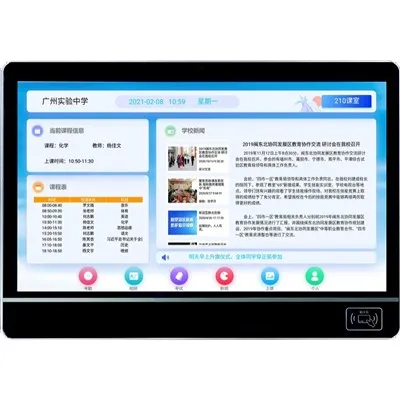
As a leading provider of Classroom Digital Boards, I understand the importance of keeping these devices up - to - date. In this blog, I'll share valuable insights on how to update the software of classroom digital boards, ensuring they function at their best and enhance the educational experience.


Why Software Updates are Crucial for Classroom Digital Boards
Software updates are not just about getting the latest features; they are essential for maintaining the security, performance, and functionality of classroom digital boards. With the ever - evolving digital landscape, new threats emerge regularly. Outdated software can leave your digital boards vulnerable to cyberattacks, which could compromise sensitive student and school data.
Moreover, software updates often include bug fixes. Over time, small glitches can accumulate, causing the digital board to freeze, lag, or display incorrect information. By installing updates, these issues are resolved, ensuring a smooth and uninterrupted learning environment. Additionally, new features are introduced through updates, such as improved touch sensitivity, enhanced multimedia support, and better integration with educational software.
Pre - update Preparations
Before starting the software update process, it's crucial to make some preparations. First, back up all the important data on the digital board. This includes saved lesson plans, student work, and any custom settings. Most modern digital boards have built - in backup options, or you can connect an external storage device to transfer the data.
Next, check the system requirements for the update. Ensure that the digital board has enough storage space and memory to accommodate the new software. Insufficient resources can lead to a failed update or cause the board to run slowly after the update. You can usually find the system requirements on the manufacturer's website or in the update notification.
It's also a good idea to inform all the users, such as teachers and students, about the upcoming update. Let them know the expected downtime and any changes they might notice after the update. This will help minimize disruptions to the teaching and learning process.
Different Methods of Software Updates
Automatic Updates
Many classroom digital boards support automatic updates. This is the most convenient method as the board will automatically detect and download the latest software when it becomes available. To enable automatic updates, go to the settings menu on the digital board. Look for the "Software Update" or "System Update" option. Here, you can select the "Automatic Updates" checkbox.
However, there are some considerations with automatic updates. Sometimes, an update might cause compatibility issues with other software or hardware on the board. Also, if the board is in use during the automatic update, it could interrupt a lesson. So, it's advisable to schedule automatic updates during off - peak hours, such as evenings or weekends.
Manual Updates
If you prefer more control over the update process, you can opt for manual updates. To perform a manual update, first, visit the manufacturer's website. Navigate to the support section and find the download page for your specific model of the classroom digital board.
Locate the latest software version and download the update file to an external storage device, such as a USB flash drive. Then, connect the storage device to the digital board. On the board, go to the software update menu and select the option to install from an external device. Follow the on - screen instructions to complete the installation.
Network - based Updates
Some schools have a local network infrastructure that allows for network - based updates. This method is useful for schools with multiple digital boards. The IT department can manage the updates centrally, ensuring that all the boards are running the same software version.
To set up network - based updates, the school's IT team needs to configure a software distribution server. The digital boards are then connected to this server, and the updates are pushed to the boards over the network. This method can save time and effort, especially in large educational institutions.
Troubleshooting Update Issues
Even with proper preparations, update issues can sometimes occur. One common problem is a failed download. This could be due to a poor network connection. Check the network settings on the digital board and ensure that it is connected to a stable Wi - Fi or Ethernet network. You can also try restarting the router and the digital board to refresh the connection.
If the installation fails, it might be because of insufficient storage space. Delete any unnecessary files from the digital board to free up space and then try the installation again. Another reason could be corrupted update files. In this case, download the update again from the manufacturer's website.
Sometimes, the digital board might not boot up properly after the update. This could be a sign of a more serious issue. Try performing a system restore to the previous software version. If the problem persists, contact the manufacturer's support team for further assistance.
The Role of Our Company in Software Updates
As a Classroom Digital Boards [Vendor] , we are committed to providing our customers with seamless software update experiences. We regularly release software updates to improve the performance, security, and functionality of our digital boards. Our website provides detailed instructions on how to update the software, and our support team is always available to answer any questions you might have.
We also offer Classroom Digital Signage solutions that can be integrated with our digital boards. These signage systems can enhance the communication and information dissemination in the classroom. Additionally, our Electronic Signage Hardware is designed to work in harmony with the software, ensuring a smooth and efficient operation.
For schools looking for comprehensive Digital Signage for Schools solutions, we have a range of products and services to meet your needs. Our digital signage can be used to display announcements, schedules, and educational content, making it a valuable addition to any classroom.
Conclusion
Updating the software of classroom digital boards is a crucial task that can significantly enhance the educational experience. By following the steps outlined in this blog, you can ensure that your digital boards are always up - to - date, secure, and performing at their best.
If you are interested in learning more about our Classroom Digital Boards or would like to discuss a potential purchase, please don't hesitate to reach out. We are here to provide you with the best solutions for your educational needs.
References
- Manufacturer's User Manuals for Classroom Digital Boards
- Industry Reports on Digital Signage in Education
- Online Resources on Software Update Best Practices