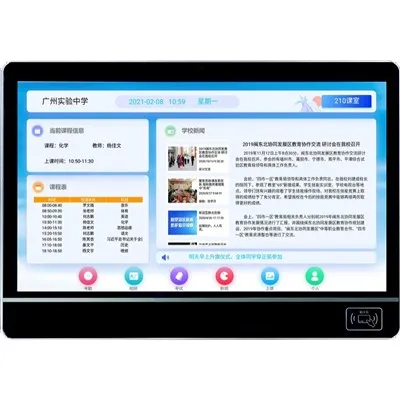
Hey there! As a supplier of Touch Screen Classroom Boards, I've seen my fair share of issues that teachers and school admins face. These high - tech boards are super useful, but like any tech, they can have their glitches. In this blog, I'll walk you through how to troubleshoot some common problems with a touch screen classroom board.
Unresponsive Touch Screen
One of the most common issues is an unresponsive touch screen. You're all set to start your lesson, but when you try to touch the board, nothing happens. Frustrating, right?
First off, check the power. Sounds simple, but sometimes the power cable might be loose. Make sure the board is properly plugged in and that the power supply is working. You can try plugging another device into the same outlet to confirm.
If the power is fine, it could be a software issue. Try restarting the board. Just like your phone or laptop, a simple restart can often fix glitches. Most touch screen classroom boards have a power button. Press and hold it until the board shuts down, then turn it back on.
Another thing to check is the calibration. Over time, the touch screen might get out of calibration, which means it doesn't register your touches in the right place. Most boards have a calibration option in the settings menu. Follow the on - screen instructions to recalibrate the touch screen. It usually involves touching a series of points on the screen.
If none of these steps work, there could be a hardware problem. In that case, it's best to contact our support team. We can help diagnose the issue and, if needed, arrange for repairs or a replacement.
Poor Image Quality
A blurry or dim image can make it hard for students to see what's on the board. This can be a real problem during lessons.
Let's start with the brightness and contrast settings. These are usually easy to adjust. Look for the menu button on the board or use the remote control. Navigate to the display settings and increase the brightness if the image is too dim, or adjust the contrast to make the colors more vivid.
Check the input source as well. If you're using a computer to display content on the board, make sure the connection is secure. A loose HDMI or VGA cable can cause a poor image. Try unplugging and plugging the cable back in to ensure a good connection.
Sometimes, the problem could be with the computer's graphics settings. Make sure the resolution of the computer's output matches the native resolution of the touch screen classroom board. You can usually find the native resolution in the board's user manual.
If the image still looks bad, it might be a problem with the board's display panel. This is a more serious issue, and you should reach out to us. We'll be able to assess the situation and provide a solution.
Connectivity Issues
Connecting external devices like laptops, tablets, or smartphones to the touch screen classroom board is a great way to share content. But sometimes, you might run into connectivity problems.
If you're having trouble connecting a wireless device, check the Wi - Fi settings on both the device and the board. Make sure they're on the same network. You might need to enter the Wi - Fi password on the device if it's the first time connecting.
For wired connections, as I mentioned before, check the cables. A damaged cable can prevent a proper connection. If you're using a USB connection, try a different USB port on the board. Sometimes, a particular port might be faulty.
Some boards also support Bluetooth connectivity. If you're trying to connect a Bluetooth device, make sure Bluetooth is enabled on both the device and the board. Put the device in pairing mode and search for it on the board. Follow the on - screen instructions to complete the pairing process.
If you're still having connectivity issues, it could be due to interference. Try moving the devices closer to the board and away from other electronic devices that might be causing interference, like routers or microwaves.
Audio Problems
Good audio is essential for a successful lesson. If you're having audio issues, it can be a real headache.
First, check the volume settings. Make sure the volume on the board is turned up. You can usually adjust the volume using the volume buttons on the board or the remote control.
If you're using an external audio source, like a computer or a smartphone, check the volume settings on that device as well. Sometimes, the volume might be muted or set very low on the source device.
Check the audio cable connection. If you're using a wired audio connection, make sure the cable is properly plugged in at both ends. A loose cable can cause audio problems.
If the audio still doesn't work, there could be a problem with the board's speakers. Try connecting external speakers to the board using the audio output port. If the external speakers work, then the problem is with the board's built - in speakers, and you should contact us for further assistance.
Software Glitches
The software on the touch screen classroom board is what makes it so powerful. But sometimes, it can act up.


If you're experiencing slow performance or freezing, try closing any unnecessary applications running on the board. Just like on your computer, having too many apps open at once can slow things down.
Keep the board's software up - to - date. Software updates often include bug fixes and performance improvements. Check the settings menu on the board for an option to check for updates. If an update is available, follow the on - screen instructions to install it.
If you're having problems with specific software features, try uninstalling and reinstalling the software. This can often fix issues caused by corrupted files.
If the software glitches persist, it's time to get in touch with us. Our support team can help you troubleshoot the software issues and get your board back up and running.
Conclusion
Touch screen classroom boards are amazing tools that can enhance the learning experience. But when problems arise, it can be a challenge. By following these troubleshooting steps, you can often fix common issues on your own.
If you're still facing problems after trying these steps, don't worry. We're here to help. As a leading supplier of touch screen classroom boards, we offer top - notch support to ensure your boards are always in great working condition.
We also offer a range of related products, such as School Signage Solutions, School Digital Display, and Smart School Boards. These products can further enhance the technology in your school.
If you're interested in purchasing new touch screen classroom boards or need help with your existing ones, we'd love to have a chat with you. Contact us to start a discussion about your needs and how we can provide the best solutions for your school.
References
- Manufacturer's user manual for touch screen classroom boards
- Industry best practices for troubleshooting touch screen devices